How to Upscale Your Own Animated Projects and 3D Renders to HD or 4K
Anyone who’s made animation has a folder of old exports they’d rather not show at full screen. The student film rendered at 480p because the lab machines couldn’t manage more. The showreel piece exported at 720p in 2013. The client project whose scene files are long gone, leaving only the final video. On a modern screen they look soft, and re-rendering is either impossible or would take days.
AI upscaling is a practical middle path: it works on the exported video you already have, takes hours rather than days, and on rendered animation the results are often striking. This guide shows exactly what that looks like on real footage, explains where it works best and where it doesn’t, and walks through doing it on an ordinary Windows PC.
Export already on your computer? Download Remastra Video and jump to the upscaling step below.
See it on real rendered animation
Below is a 480p export of an openly-licensed 3D animated short beside the same clip after AI enhancement. Both sides show the identical frames. The left panel is the original scaled up the way an ordinary video player would scale it.
Footage © Blender Foundation | durian.blender.org — Creative Commons Attribution 3.0.
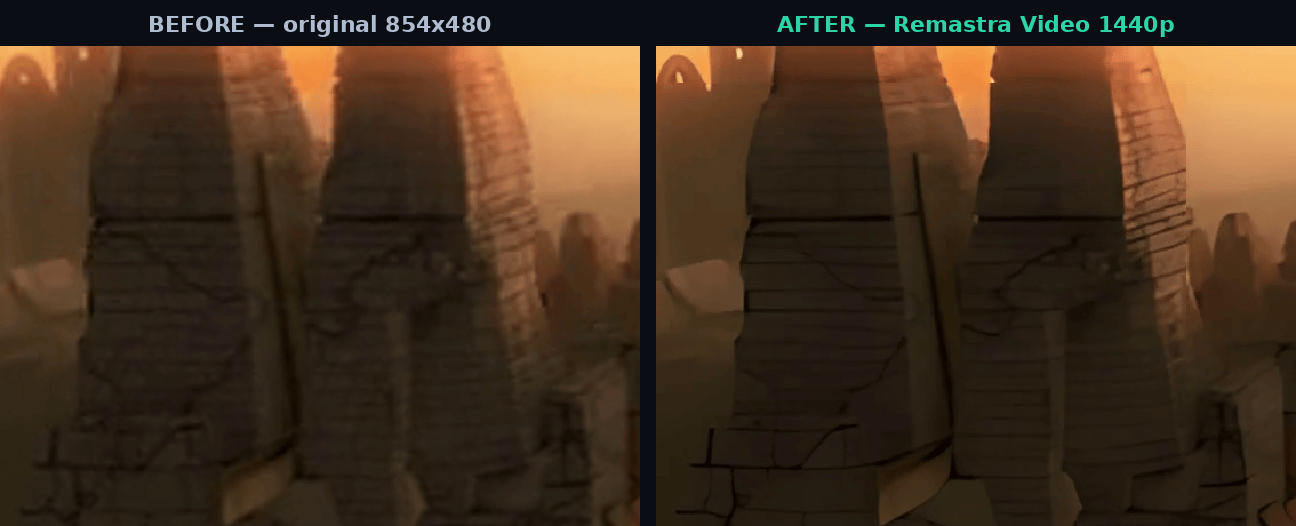
Watch the stonework on the towers and the edges of the dragon’s wings. Ordinary scaling smears the mortar lines into grey and softens every edge; AI reconstruction resolves individual stone blocks, sharpens the crack running across the tower, and keeps the lighting gradients clean instead of banded. Smooth regions like sky and skin change very little — correctly, because there’s nothing there to reconstruct.
Two frozen frames make the difference easier to study than the moving clip. Each pair shows the identical frame and the identical crop; only the processing differs.

Where it works well, and where to be careful
This is worth being precise about, because “animation” covers very different things.
Rendered 3D animation and CGI — like the clip above — upscales very well. It has realistic textures, lighting, depth of field and surface detail, which behave much like live footage. Hard-surface detail (architecture, machinery, fabric, foliage) tends to gain the most.
Flat 2D animation — traditional cel-style, anime, motion graphics with hard line-art and large uniform colour fills — is a different problem. The model in this app is a general-purpose one, not one specialised for line-art, so results on flat 2D content vary: line edges usually sharpen, but the effect is less dramatic than on rendered footage, and very clean vector-style graphics may gain little. Test a short section of your own clip before drawing conclusions — that’s exactly what the free trial is for.
This guide is about upscaling animation you made, own, or that’s released under a licence permitting it — like the Creative Commons footage above. Upscaling commercial films or shows you don’t have rights to is a copyright matter and isn’t what this guide covers.
Step 1: Find the best export you have
Locate the highest-quality version
Check old project folders, external drives and cloud backups. If you have both a master export and a compressed web version, use the master — every re-encode lost detail the AI can’t get back.
Check what you’re working with
Right-click → Properties → Details. 854×480 or 1280×720 are typical for older exports and both upscale well. Also note the frame rate — it’ll be preserved exactly.
Work on a copy
If the original scene files are gone, the export is your only master. Duplicate it before doing anything.
Step 2: Upscale with AI
Remastra Video upscales video files like animation exports on any Windows PC — no NVIDIA GPU required, entirely offline, so unreleased work never leaves your machine:
Get the free trial
Download from remastravideo.com/download, extract the ZIP, and run RemastraVideo.exe. No installation, no account, no internet needed during use.
Open your export
Drag in the MP4 or MOV. MKV, AVI, WebM and other common formats work too.
Choose the output resolution
1080p or 1440p for a 480p export; 4K is worth trying for showreels or large displays if the source is clean. The output keeps your project’s aspect ratio exactly — 16:9 stays 16:9, and unusual ratios are preserved rather than forced into a standard frame.
Process in the background
As a rough guide, a 5-minute clip takes 30–60 minutes on a typical laptop; higher output resolutions take longer. Start it and do something else — it’s still far faster than re-rendering.
The trial processes any 30-second section you choose, at full quality with no watermark — pick your most detail-heavy shot and judge the result before paying anything. The full version is $39 one-time, no subscription.
Test It on Your Own Render
The free trial upscales any 30-second section you choose, at full quality with no watermark. Pick the shot with the most fine detail and see what it does. Runs offline on any Windows PC — no GPU needed.
Download Free TrialWindows 10/11 · $39 one-time · No subscription · 14-day money-back guarantee
What to expect on rendered animation
| Hard-surface detail | Noticeably sharper — architecture, fabric, foliage gain the most |
| Edges and silhouettes | Cleaner, less soft |
| Compression artifacts | Largely cleaned up |
| Smooth gradients (sky, skin) | Little change — nothing to reconstruct |
| Rendered motion blur | Unchanged |
| Frame rate and timing | Unchanged |
| Audio | Unchanged, carried through as-is |
Step 3: Use it
- Showreels and portfolios: an HD or 4K version of older work holds up alongside recent pieces.
- Re-uploads: platforms compress on upload regardless, so give them the sharpest input you can.
- Archive both versions — the original export stays your master.
A true re-render at higher resolution will always beat upscaling an export, because it generates genuine detail rather than reconstructing it. Upscaling is the practical option when re-rendering isn’t feasible — the scene files are gone, the software has moved on, or the render time simply isn’t worth it for the result you need.
The takeaway
Old animation exports don’t have to stay at the resolution the hardware of the time could manage. On rendered 3D work the improvement is substantial and honest; on flat 2D work it varies, and a 30-second test tells you which case yours is. Either way, it’s a few hours of background processing against days of re-rendering — or against work you can’t re-render at all.